 Cocon
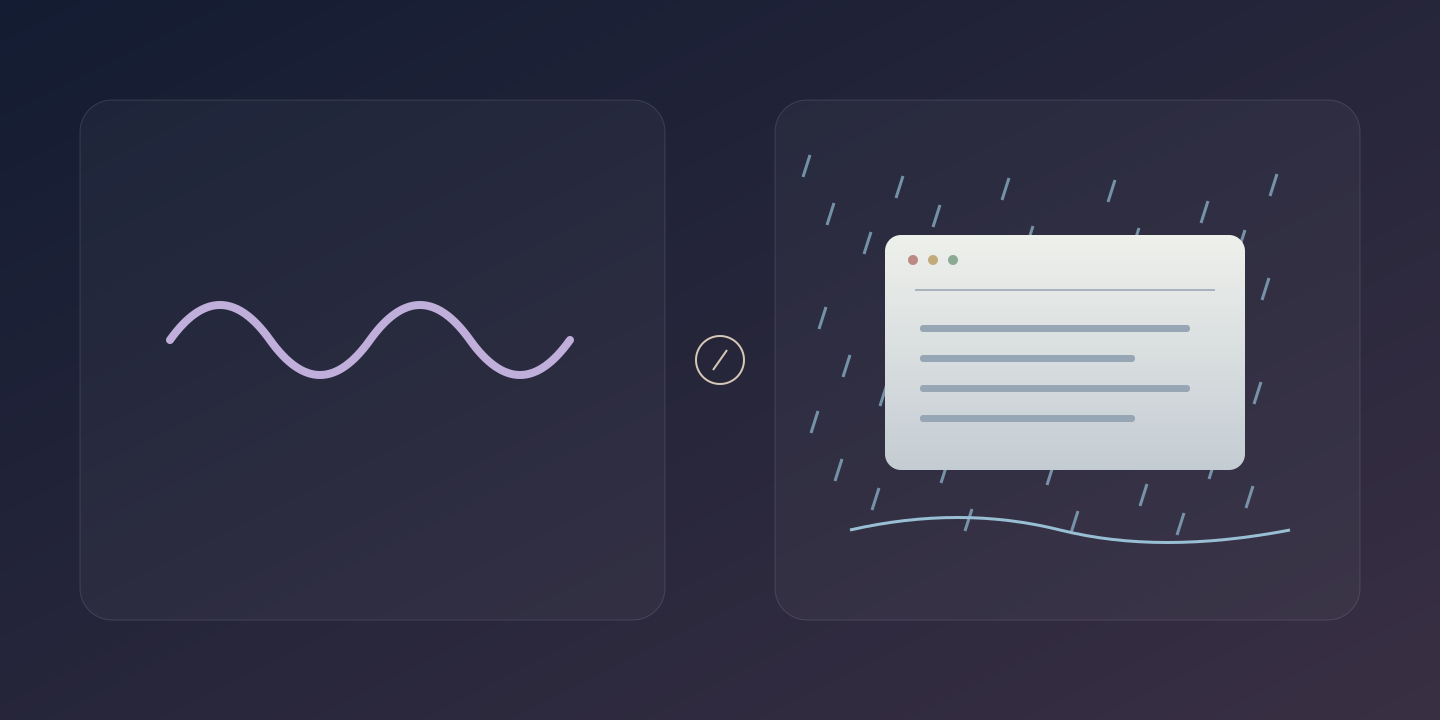
For rain you can hear without a picture, start with Background Sounds in macOS. For rain or a fireplace you can also see around your work, try a desktop ambiance app. You can make that choice before installing anything.
Both approaches leave your document available for work. The difference is whether you want sound alone or a scene on your wallpaper. This guide covers that decision; for videos and live wallpapers, see our guide to rain on a Mac desktop.
Start with the sound already on your Mac
Open System Settings → Accessibility → Audio → Background Sounds. Enable it, choose a sound and adjust its volume. Apple documents rain and ocean among the choices, with downloads for higher-quality audio. Check Apple’s Background Sounds guide for the controls available on your macOS version.
Try it with the document you were about to work on. Set the volume low enough that you can still hear anything you need to hear in the room. Read a paragraph or edit a few lines. If sound alone gives you the setup you want, you can stop here.
Decide whether you want to see the weather
Cocon adds a transparent animated scene above your wallpaper and behind your windows. Rain falls around the visible edges of your work; Fireplace adds a warm glow at the bottom of the desktop. You keep your wallpaper. A full-screen document can cover the effect, so a scene adds little if you spend the session with no desktop visible.
| Your setup | Start with |
|---|---|
| You want background audio and no visual change | macOS Background Sounds |
| You want falling rain over your own wallpaper | Cocon’s free Rain scene |
| You want a warm glow around your document | Cocon’s free Fireplace scene |
| You need silence but still want a desktop scene | Cocon with its sound muted |
Rain, Fireplace and Snow are free in Cocon, including volume control. Cocon Pro unlocks their visual intensity and scene options, as well as the Pro ambiances. You do not need Pro to try the basic rain or fire setup.
Compare one source at a time
Use this as a suggested comparison, rather than a test of whether an app improves concentration:
- Work on one short task with Background Sounds. Note whether you keep adjusting the volume or reaching to turn it off.
- Turn Background Sounds off. Open Cocon from the menu bar, choose Rain and set a comfortable volume. Leave a narrow strip of desktop visible under your document.
- Repeat a similar task. Decide whether you enjoy the visible rain, ignore it, or find yourself watching it.
Keep the task and headphones similar. Stacking Apple’s rain with Cocon’s rain makes it harder to judge either sound, and can explain why the result seems louder than expected.
If you want only the animation, open Volume in Cocon and click the speaker beside the slider. That mutes Cocon while leaving the scene active; it does not turn off Background Sounds in System Settings.
If you still hear rain after switching it off
Check each source you started: macOS Background Sounds, Cocon, and any browser tab or media player. Stop them one at a time. In Cocon, clicking the active ambiance card again stops the scene; the speaker control mutes its audio.
There is no need to choose a permanent setup. You might use sound alone with a full-screen spreadsheet and a fireplace with a smaller writing window in the evening. Our guide to choosing ambient sound for a task can help you choose the sound once you have chosen the format.