 Cocon
Before sharing your Mac screen, mute the ambient app and choose the window you want to show. If you want to keep the ambiance for yourself, check the receiving view and audio first. A desktop scene behind your windows is not a guarantee that a screen-sharing app will exclude it.
Cocon draws rain, fire and other scenes over your wallpaper, behind your work. It does not replace your meeting app or manage what that app broadcasts. The steps below are a proposed rehearsal, not a claim that we tested every meeting app or capture mode.
Check three paths separately
| Path | What to check |
|---|---|
| Shared picture | Are you sharing a document window or the entire desktop? |
| Microphone | Can the microphone pick up ambiance playing through your speakers? |
| Computer audio | Have you enabled the meeting app’s option to send Mac audio? |
Muting your microphone does not answer the computer-audio question. Zoom, for example, offers a separate Share Sound option and can share computer audio without sharing the screen. Check that option before presenting. See Zoom’s instructions for sharing computer audio.
Headphones keep the ambiance out of your room speakers. They do not establish which audio sources your meeting software is capturing. For a presentation where you need only your voice, muting the ambient app removes one source you would otherwise have to check.
Prepare the picture you want to send
Choose a specific document window if the meeting app offers that mode and you only need to show that document. Apple’s FaceTime screen-sharing guide distinguishes sharing a window from sharing the entire screen. Other apps have their own selectors and previews.
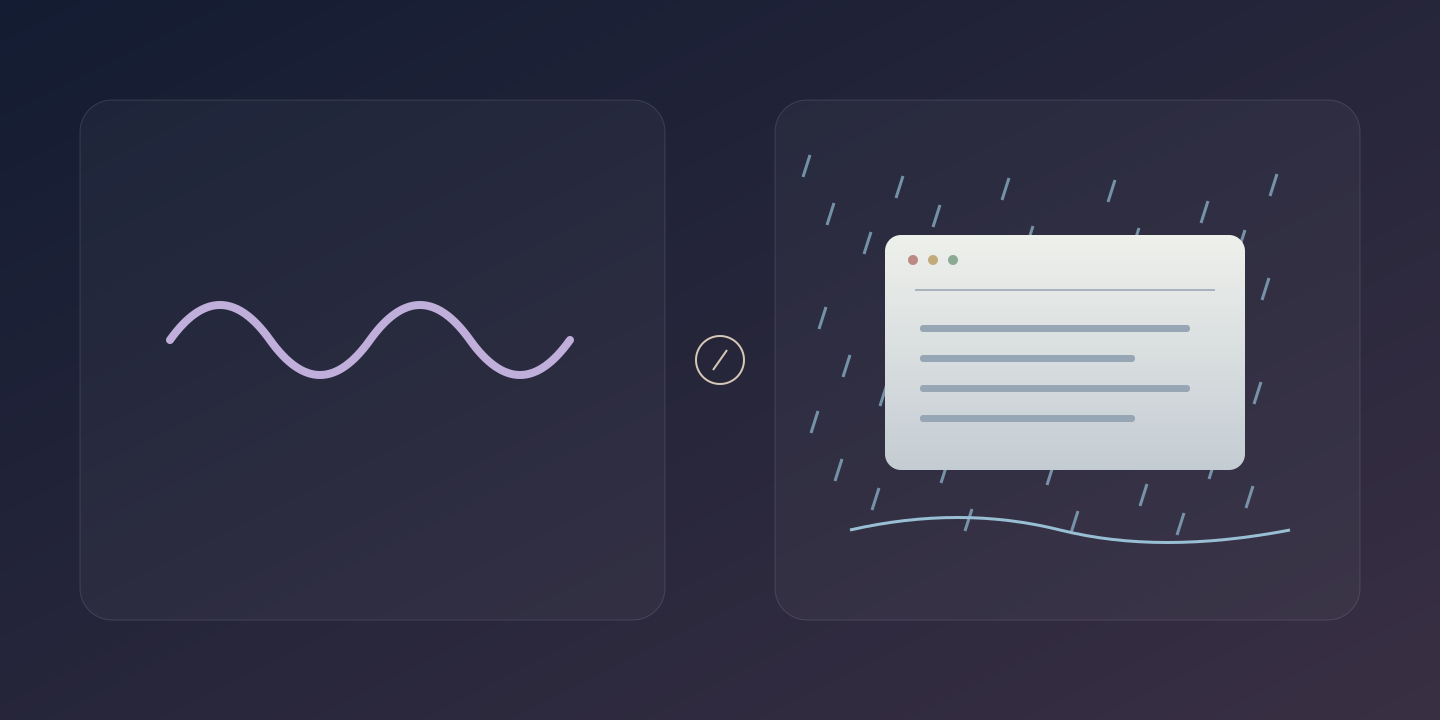
Cocon’s scene sits outside the document, on the desktop layer. Sharing a whole display may include that visible desktop. Do not assume that placing the document in front of the scene hides every edge of it from your audience.
If you need a plain desktop, open Cocon in the menu bar and click the active ambiance card again to stop it. Wait for the scene to disappear before you start sharing. This removes both the scene and its sound; muting through the Volume speaker button keeps the scene active.
Rehearse with a receiving view
A short rehearsal can catch the mismatch between what you see locally and what you send:
- Join a test meeting from another device, with its microphone and speakers muted to avoid feedback. Share the exact window or display you plan to use.
- Inspect the receiving picture. Move your document as you would during the presentation and check whether the desktop appears.
- Check audio separately, using headphones on the receiving device if needed. Say a short sentence, pause, and listen for rain or crackling. Recheck after changing the share mode or enabling computer audio.
This is a suggested procedure, not a measured compatibility result. If you cannot check a receiving view and the ambiance has no role in the presentation, stop it for the call.
Keep the scene during a voice call
For a call without screen sharing, you may prefer silent rain or fire. In Cocon, open Volume at the top of the menu-bar panel and click the speaker beside the slider. That mutes Cocon while leaving the animation active. Rain, Snow and Fireplace are free, including this audio control.
The Fireplace page explains the free scene and Pro controls. For a weather scene, start with Rain. After the call, restore sound at a comfortable level rather than raising the Mac’s master volume to compensate for a muted app.
For a desk setup before the meeting, see rain on your Mac desktop and choosing an ambient sound for your work.