 Cocon

Keep one steady ambiance for your work block, choose a different one for your break, and use a timer you already have. For example, pair rain during a task with a fireplace during the pause, without keeping a YouTube tab open. Choose both scenes before you start so you know what to select when the timer rings.
One steady sound for the work block
Pick an ambiance you are willing to leave alone until the block ends. Here, “steady” means keeping the same selection throughout the block. You do not need to find a perfect sound before beginning.
For example, start with Rain for a writing block. Open Cocon in your Mac menu bar and select the Rain card. Use the separate volume slider to set how loud the sound plays. Make that adjustment before starting your timer, then leave the controls alone while you work.
Rain, Fireplace and Snow are free. Cocon Pro adds Storm, Forest, River, Ocean and Coffee Shop. If you want to compare choices before your next session, read about choosing an ambient sound for your work.
With Cocon Pro, the “Visual intensity” slider also changes the scene. For Rain, it moves from drizzle to downpour and blends recordings of light and heavy rain. Choose the rain character with that control; use the separate volume slider to set loudness.
A different scene for the break
Decide on your break scene before the work block begins. The change can be a simple part of your routine: the timer rings, you select another card, and you step away from the task. You do not need to browse through the available scenes at every pause.
For example, switch from Rain to Fireplace. Open Cocon from the menu bar and select the Fireplace card. If you want silence instead, the speaker button beside the volume slider mutes the sound while the animation keeps running.
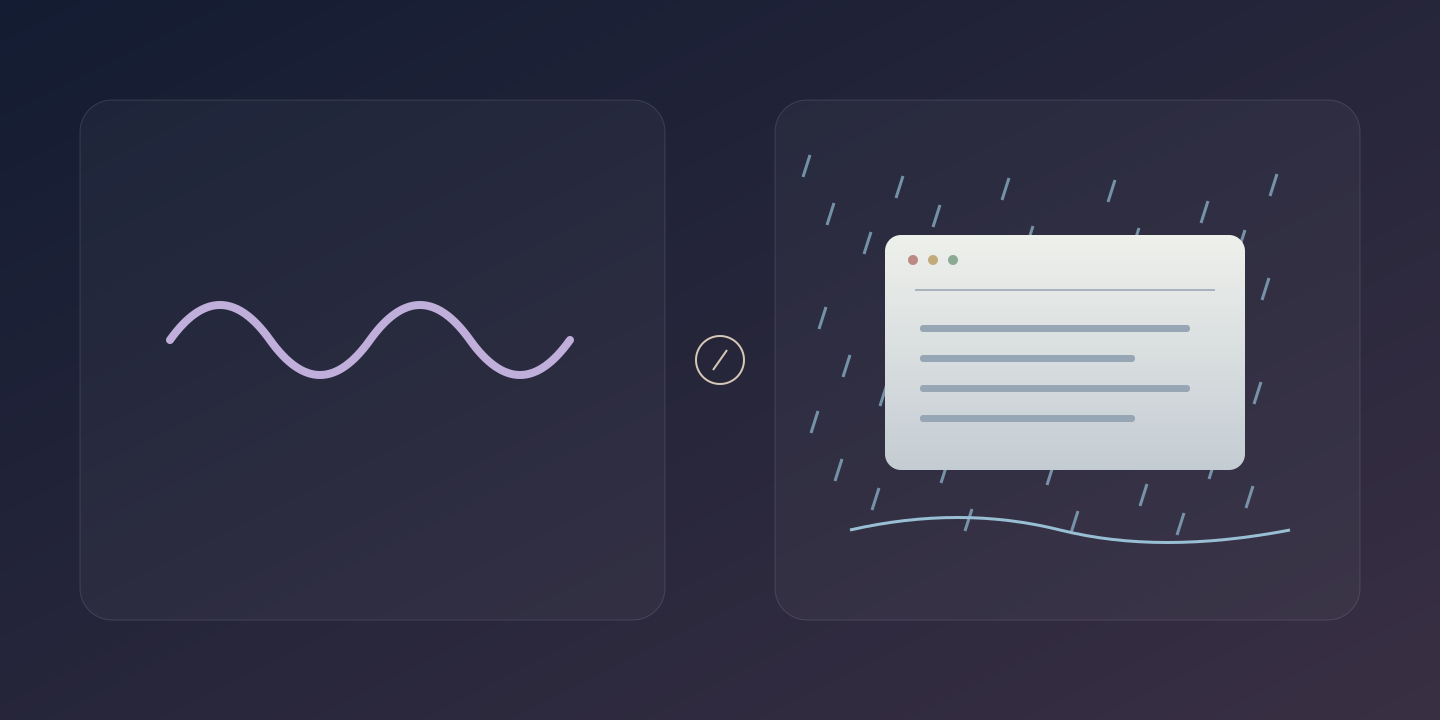
The animation appears along the bottom of the screen, over your wallpaper. Your work stays in front. Resize your document window to leave a strip of wallpaper visible if you want to see the scene during a block.
You can also leave that decision for the break. There is no need to rearrange your document just to make the animation visible while you work.
A routine you can copy
The well-known Pomodoro version uses 25 minutes of work followed by a 5-minute break, with a longer break after four work blocks. People adapt those lengths. The following example uses one 25 + 5 cycle, with Rain for work and Fireplace for the break.
- Start the work scene. Open Cocon in the Mac menu bar. Select the Rain ambiance card before opening your timer.
- Set the volume. Move the separate volume slider to the level you want. If you have Pro and want to change the rain itself, adjust “Visual intensity” now.
- Start 25 minutes. Use your chosen timer and begin your task. Keep Rain selected throughout this work block. Save any comparison with another ambiance for later.
- Switch at the bell. When the timer rings, open Cocon and select the Fireplace card. This is your break scene for this example.
- Take five minutes. Start a 5-minute timer and leave the task for the break. Adjust the volume if you want the fireplace sound at a different level.
- Use mute if needed. During the break, click the speaker button beside the slider if you want silence with the animation still running.
- End the cycle. When the break ends, click the active Fireplace card again to stop the scene. Choose your next task before starting another cycle.
What Cocon does not do
Cocon is not a timer and does not track work blocks. Use the timer you already like: the Clock app, a kitchen timer or any Pomodoro app. Cocon supplies the sound and the scene. Your timer tells you when the block ends.
Keep the timer accessible enough that you can start the break without searching for it. If you are still choosing your audio setup, compare Mac Background Sounds and an ambient app before your next session.
For your final block of the day, decide what happens after the bell. You can stop the active scene and follow a separate end-of-workday ritual instead of starting another cycle.